
TL;DR
- What this guide covers: A complete walkthrough for configuring multi-level purchase approval workflows in Adobe Commerce B2B, from company account setup through approver chains and threshold rules.
- Who it’s for: eCommerce managers and IT directors at industrial manufacturing companies running B2B storefronts.
- Platform covered: Adobe Commerce (Magento) B2B, integrated with Epicor, NetSuite, or Dynamics 365 ERPs.
- What you’ll be able to do: Build repeatable, role-based approval workflows with dollar thresholds, multi-tier approver chains, and automated buyer notifications – step by step.
- Proof it works: Duke Industrial Equipment reduced their order approval cycle from 48 hours to under 4 hours and achieved zero unauthorized purchases post-implementation.
Unauthorized purchases and stalled orders cost industrial manufacturers real money every quarter – and most of the damage traces back to poorly configured approval rules in the B2B storefront. After reading this guide, you’ll be able to set up multi-level purchase approval workflows in Adobe Commerce that enforce spending limits, route orders to the right approvers, and keep your fulfillment pipeline moving. This applies directly to industrial manufacturing companies running Adobe Commerce with Epicor, NetSuite, or Dynamics 365, where configuring B2B approval rules correctly means the difference between a self-service portal that works and one that generates support tickets.
Why eCommerce Manager / IT Directors Get This Wrong
The most common failure pattern starts with a flat approval structure: one approver, one threshold, no role differentiation. An eCommerce manager sets up a single approval rule during the initial B2B store launch, and it works fine for the first few months. Then the company adds new buyer roles, regional divisions, or product lines with different margin profiles. Suddenly, a floor supervisor in one plant can approve a $50,000 fastener order that should require a procurement director’s sign-off. Or worse, every order over $500 gets routed to the same VP, who becomes a bottleneck and delays shipments by days. The downstream cost is measurable: order accuracy drops, fulfillment slows, and your sales team spends hours chasing internal approvals instead of closing new accounts.
Without clear role hierarchies and threshold-based routing, the B2B portal becomes a liability rather than a self-service asset. Research shows that companies with well-structured digital commerce experiences see a 25% increase in customer satisfaction and a 20% boost in repeat purchases. The inverse is equally true: opaque approval processes cause large orders to stall, and buyers lose confidence in the portal. They revert to phone calls and email chains, which defeats the entire purpose of your commerce investment. Manual workarounds also introduce data integrity risks – orders entered outside the system don’t flow back to the ERP correctly, creating inventory mismatches and invoicing errors. Duke Industrial Equipment faced exactly this problem. After fixing their approval workflow configuration, they reduced their order approval cycle from 48 hours to under 4 hours and achieved zero unauthorized purchases post-implementation.
What You Need Before You Start
Before you touch a single configuration screen, confirm these prerequisites are in place. Missing any of them will create rework later.
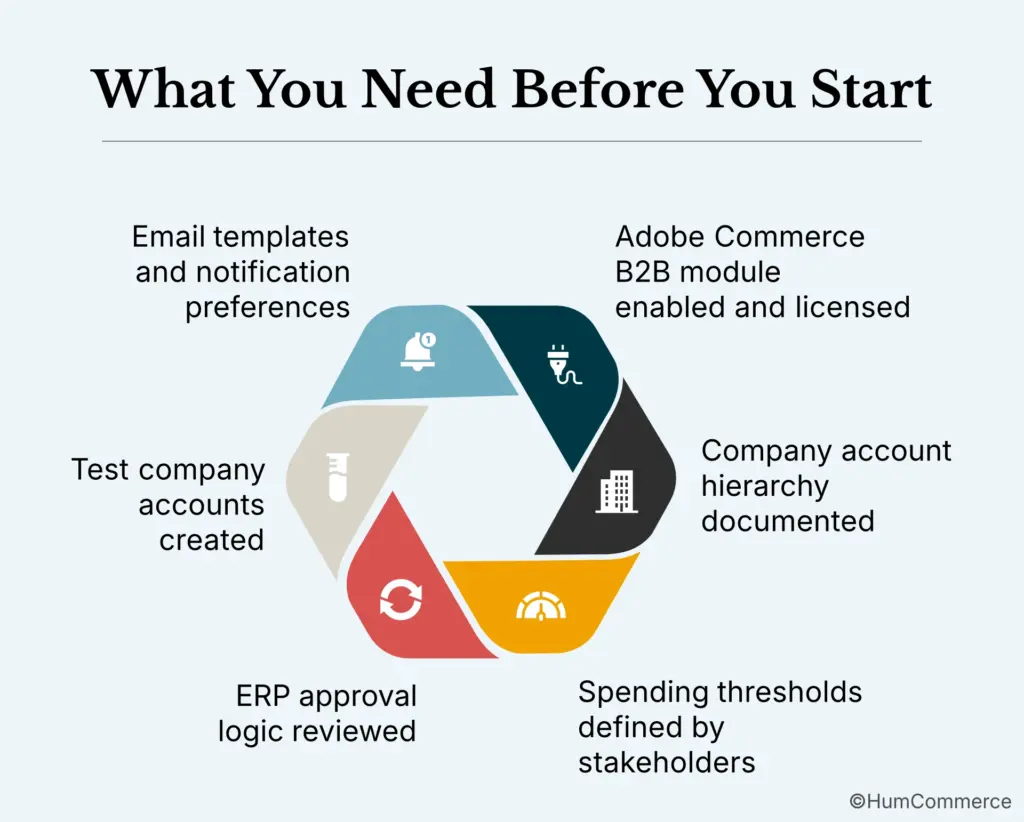
- Adobe Commerce B2B module enabled and licensed: Confirm the B2B extension is active in your Adobe Commerce instance (version 2.4.6+ recommended for the latest approval workflow features). You need admin-level access to Stores > Configuration > B2B Features.
- Company account hierarchy documented: Map out your organizational structure – who reports to whom, which roles exist (buyer, senior buyer, procurement manager, division VP), and which cost centers or departments need separate approval chains. This document becomes your configuration blueprint.
- Spending thresholds defined by stakeholders: Your eCommerce manager and finance team need to agree on dollar thresholds per approval level before configuration begins. Common tiers for industrial manufacturers: under $1,000 (auto-approved), $1,000-$10,000 (manager approval), $10,000+ (director or VP approval).
- ERP approval logic reviewed: If you’re running Epicor, NetSuite, or Dynamics 365, check whether approval rules already exist in the ERP. You’ll need to decide whether Adobe Commerce or the ERP is the system of record for approvals – or whether they work in tandem with the ERP handling post-order financial approvals.
- Test company accounts created: Set up at least two test company accounts with different hierarchies so you can validate workflows before going live.
- Email templates and notification preferences confirmed: Approvers need to know when action is required. Confirm your transactional email setup is functional and that SMTP relay is configured correctly.
How to Configure Multi-Level Purchase Approval Workflows in Adobe Commerce B2B: Step-by-Step
Step 1: Enable B2B Company Features and Approval Rules
Start in the Adobe Commerce admin panel under Stores > Configuration > General > B2B Features. Toggle “Enable Company” and “Enable Purchase Orders” to “Yes.” These two settings unlock the company account structure and the purchase order workflow that approval rules depend on. Without purchase orders enabled, there’s no approval trigger – orders process immediately. Save the configuration and clear cache. This is also where you enable the “Enable B2B Quote” feature if your approval chain needs to cover negotiated quotes, which is common in industrial manufacturing where contract pricing varies by account.
Step 2: Build Your Company Account Hierarchy
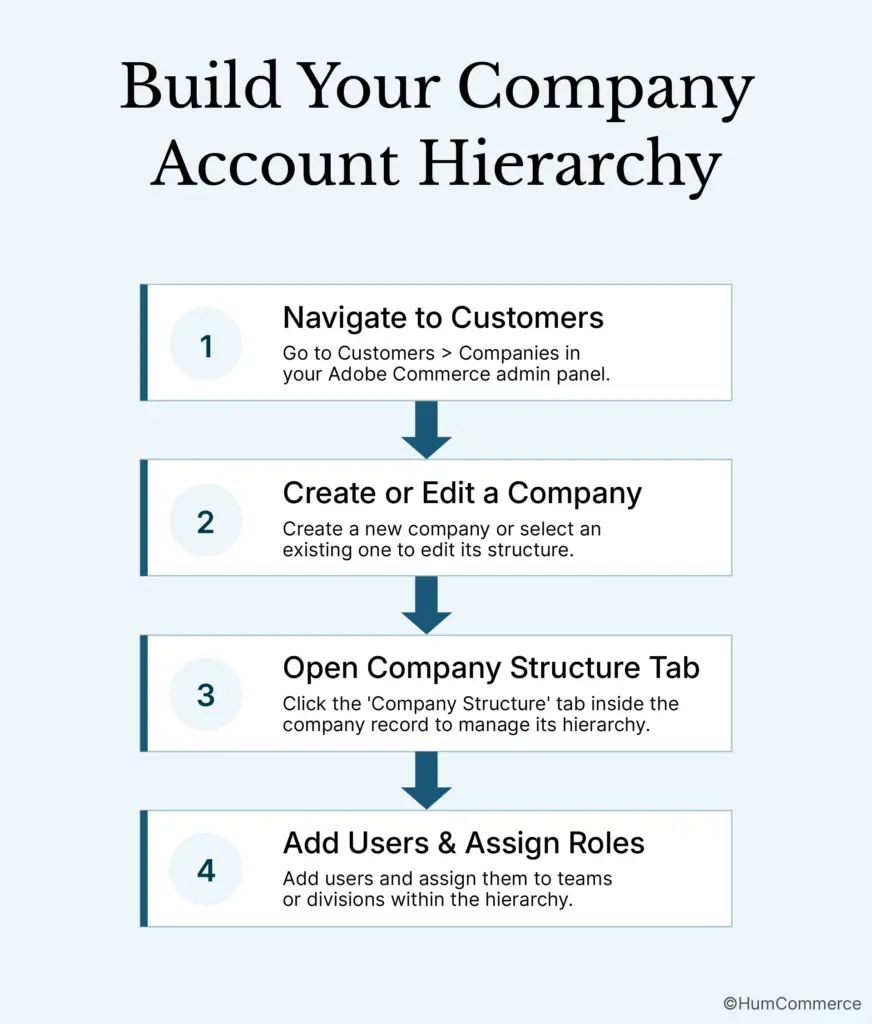
Navigate to Customers > Companies and either create a new company or edit an existing one. Inside the company account, open the Company Structure tab. This is where you define the organizational tree that your approval chain will follow. Add users and assign them to teams or divisions that mirror your real org chart. Each node in this tree can serve as an approval level. For example, a fastener distributor might have “Plant A Buyers” reporting to “Plant A Procurement Manager,” who reports to “Regional Director.” The hierarchy you build here directly determines who can approve what – Adobe Commerce B2B company account approval flows follow this tree structure from bottom to top.
Step 3: Define Roles and Permissions
Under the company account, go to Roles and Permissions. Create distinct roles that match your documented hierarchy: Buyer, Senior Buyer, Procurement Manager, and so on. For each role, set granular permissions – specifically whether that role can “auto-approve” orders, “view purchase orders,” or “approve purchase orders for subordinates.” This is where many implementations go wrong. If you give a Buyer role the “auto-approve” permission, your entire approval chain is bypassed for that user. Be deliberate. Roles should reflect the actual authority each person holds in your ERP (Epicor, NetSuite, or Dynamics 365), not just their job title.
Step 4: Create Approval Rules with Threshold Triggers
This is the core step for configuring B2B approval rules in your Magento-based storefront. Inside the company account (logged in as the Company Administrator on the storefront), navigate to Approval Rules. Create a new rule and define the conditions that trigger the B2B purchase requisition workflow. Adobe Commerce supports conditions based on order total, shipping cost, and number of SKUs. Set your first rule: orders between $1,000 and $10,000 require approval from the buyer’s direct manager. Set your second rule: orders above $10,000 require approval from the next level up. Each rule specifies which roles or specific users serve as approvers. You can chain multiple approvers so the order escalates automatically if the first approver doesn’t act within a set period.
Step 5: Configure Approver Chains and Escalation Logic
For true multi-level approval, you need sequential approver chains. When creating an approval rule, add multiple approvers in order. The first approver receives the notification; once they approve, the order moves to the next approver in the chain. If your industrial manufacturing operation has three tiers of approval for high-value orders, configure three sequential approvers. Watch for a common pitfall: if you set approvers in parallel rather than sequentially, any single approver can greenlight the order. That’s appropriate for some scenarios but defeats the purpose of multi-level control. Test each chain with your test company accounts to confirm the sequence behaves as expected.
Step 6: Set Up Notifications and Email Templates
Approvers who don’t know an order is waiting are approvers who create bottlenecks. Go to Marketing > Communications > Email Templates in the admin panel and customize the purchase order approval notification templates. Include the order total, the requesting buyer’s name, and a direct link to the approval screen. Adobe Commerce sends notifications automatically when a purchase order enters the approval queue, but the default templates are generic. For industrial buyers processing dozens of orders daily, a clear subject line and summary save time. If you’re integrated with NetSuite or Dynamics 365, consider also triggering a notification in the ERP so approvers who live in that system don’t miss the request.
Step 7: Test, Validate, and Document
Before going live, run through every approval scenario with your test accounts. Place orders at each threshold level and confirm they route to the correct approvers in the correct sequence. Verify that rejected orders return to the buyer with a clear reason. Check that approved orders flow correctly to your ERP – this is where integration matters most. If your Epicor or NetSuite integration uses real-time API sync, confirm the approved purchase order appears in the ERP with the correct pricing, tax, and shipping data. Document each rule, threshold, and approver chain in a shared reference so your team can maintain the configuration as roles change. HumCommerce has seen clients achieve 75% faster quote workflows after properly connecting approval logic between Adobe Commerce and Epicor CPQ, eliminating manual back-and-forth that previously added days to the cycle.
3 Mistakes to Avoid
Mistake 1: Using a Flat Approval Structure for Complex Organizations
A single approval rule with one threshold and one approver might work for a five-person purchasing team. For an industrial manufacturer with multiple plants, divisions, and spending authorities, it creates either a bottleneck (one person approves everything) or a compliance gap (orders slip through without proper review). Build your approval rules to match your actual organizational complexity from day one.
Mistake 2: Ignoring ERP Approval Logic
If your Epicor, NetSuite, or Dynamics 365 instance already enforces purchase approval rules, duplicating them in Adobe Commerce without coordination creates conflicts. Orders might get approved in the storefront but rejected in the ERP, confusing buyers and stalling fulfillment. Decide upfront which system owns approval authority for each scenario, and configure accordingly. The ERP should remain the single source of truth for financial controls.
Mistake 3: Skipping Role-Based Testing Before Launch
Configuring approval rules in the admin panel is only half the job. If you don’t test each role’s experience on the storefront – placing orders, receiving notifications, approving and rejecting – you’ll discover problems after real buyers hit them. Create test users for every role in your hierarchy and run end-to-end scenarios. Quote turnaround time at one HumCommerce client dropped from 3-5 days to just hours after they identified and fixed approval routing errors during a structured testing phase.
Real Example: Duke Industrial Equipment
Duke Industrial Equipment, a mid-market industrial parts distributor, was losing orders and frustrating buyers because their Adobe Commerce B2B approval workflow relied on a single manager to approve every purchase order above $500.
After getting this right:
- Order approval cycle reduced from 48 hours to under 4 hours
- Zero unauthorized purchases post-implementation
The fix wasn’t a platform migration or a major overhaul. Duke’s team restructured their company account hierarchy in Adobe Commerce to reflect three distinct approval tiers: plant-level buyers, regional procurement managers, and a VP for orders exceeding $25,000. They created threshold-based approval rules that routed orders automatically based on dollar value and the buyer’s position in the company tree. On the ERP side, their Epicor integration was updated so that approved purchase orders synced in real time, carrying the correct contract pricing and approval metadata.
The entire project took less than two weeks of configuration and testing – no custom development required. The key insight: the platform already supported everything they needed; the problem was configuration, not capability.
Need Help Implementing This?
Setting up multi-level purchase approval workflows is straightforward in concept, but the configuration details matter enormously – especially when you’re connecting Adobe Commerce to an ERP like Epicor, NetSuite, or Dynamics 365 for an industrial manufacturing operation. A misaligned threshold or a broken notification can stall orders for days and erode buyer trust in your portal.
HumCommerce specializes in exactly this type of B2B implementation. We design Adobe Commerce to behave like part of your ERP and operations, not just a storefront, with approval chains, contract pricing, and role-based workflows that match how your customers actually buy. If your approval setup needs expert configuration or you’re planning a broader B2B portal rollout, talk to a HumCommerce consultant about your Adobe Commerce B2B approval workflow setup.